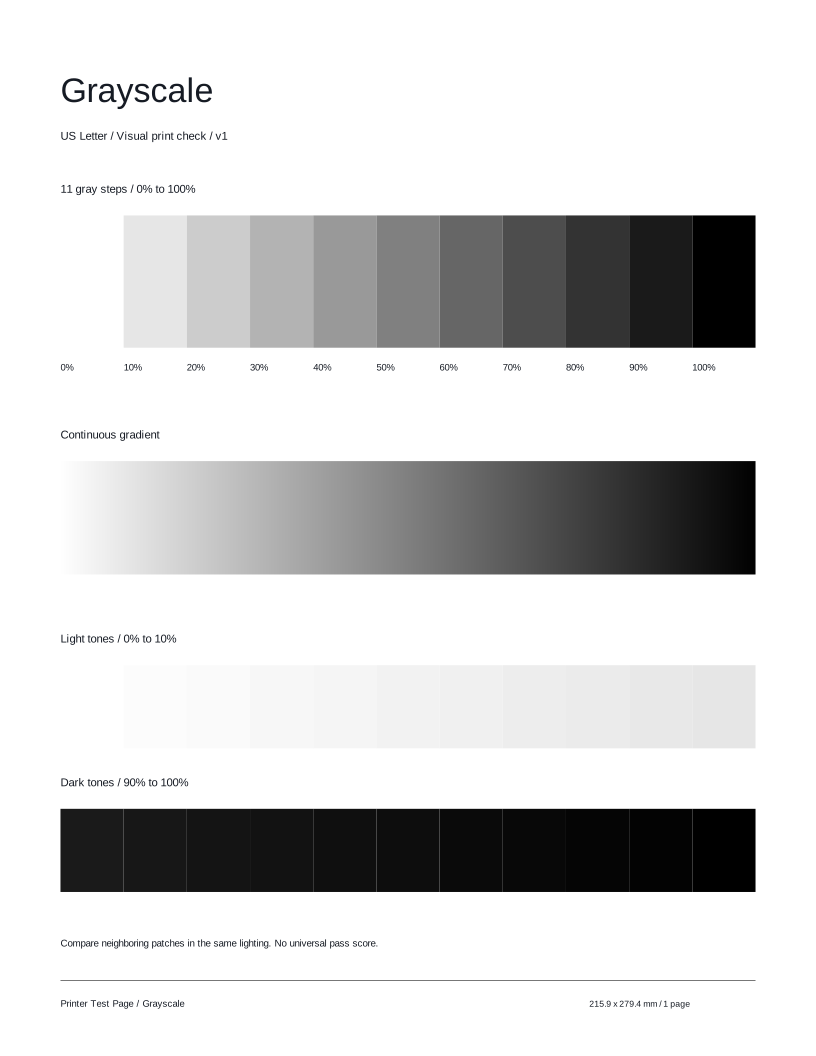
Tone steps

Look for distinct neighboring shades. Some very light or dark tones may be harder to separate.
 Printer Test PageFree test pages for your printer.TEST PAGE
Compare gray steps, a smooth gradient, and the lightest and darkest tones. A quick, easy way to compare your printer’s output.
Preparing your test page…
Use this guide to check the key areas on the test page. Each element helps you inspect a different aspect of print quality.
Look for distinct neighboring shades. Some very light or dark tones may be harder to separate.
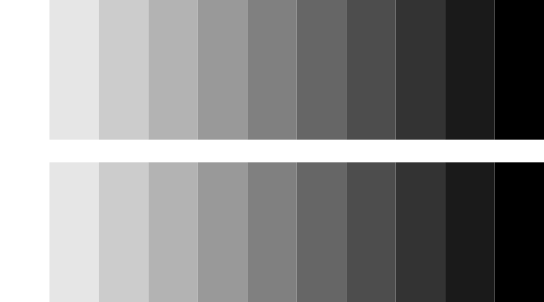
Look for smooth changes from light to dark without unexpected bands.

Inspect the lightest and darkest patches under the same lighting.

Check the labels and block edges for clarity, gaps, or smudging.
Compare these illustrative examples with your printout. Similar results can have different causes. It can reveal visible output issues, but this sheet cannot diagnose a component or replace your model’s maintenance procedures.
Neighboring gray tones are distinct, with even coverage.

Several neighboring shades look alike.
Paper, contrast, and output settings can affect tonal detail.
Tonal transitions show unexpected jumps or lose separation.
Check the quality setting and paper type. Follow your printer model’s maintenance guide if the issue persists.
Try these other tests for a more complete check.
Here are answers to common questions about the Grayscale test page.
Print this test page and take a closer look at your output.
Test page not ready. Cancel printing, wait for the selected preview, and try again or download the matching PDF.